How To Setup Lossless Scaling Frame Generation for FF8 Remastered
In this tutorial you will learn how to increase the FPS of Final Fantasy VIII Remastered using Lossless Scaling Frame Generation in addition to the Eden Launcher. Here you will find a ready-made setup that allows you to increase the game’s frame rate by up to 2x, improving the overall fluidity of the game, whether on maps, in battles, or in FMV cutscenes.

1 – Setting up Final Fantasy VIII Remastered for Lossless Scaling.
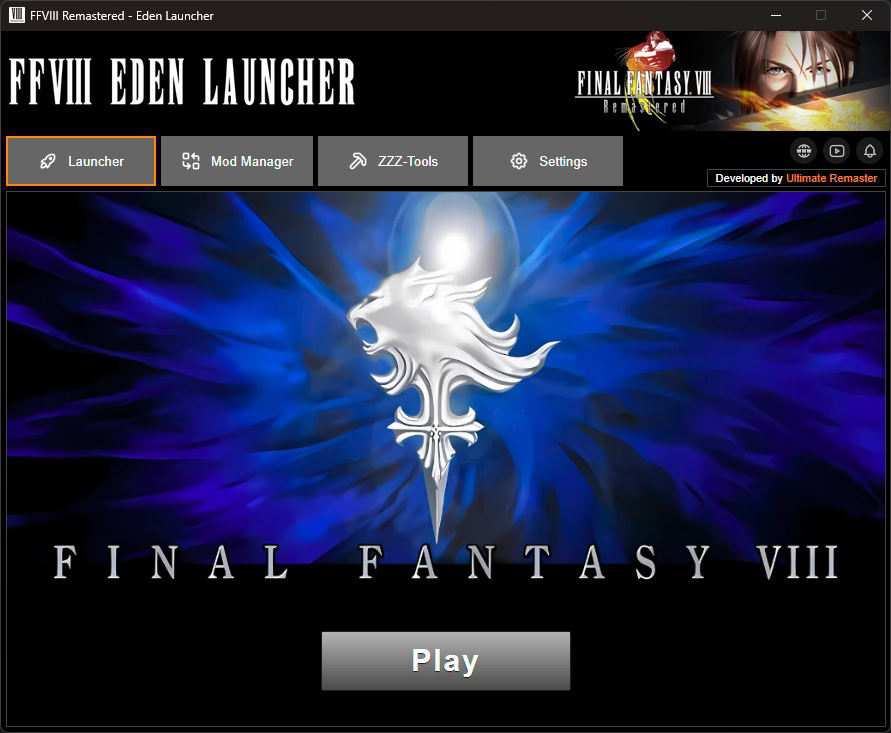
In order for Lossless Scaling to generate frames for Final Fantasy VIII, it’s usually necessary to change the game’s display mode from Full Screen to Windowed Mode. If you already have the Eden Launcher installed in your game setup, simply open the launcher, go to the Settings tab, and change the Screen Mode option to “Windowed”.
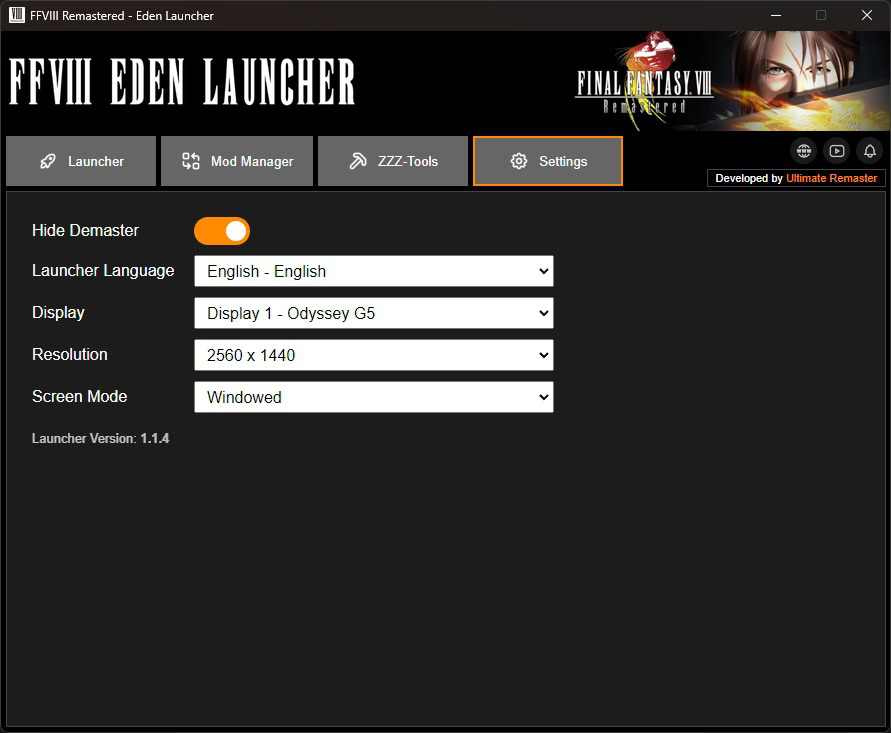
According to Lossless Scaling’s own instructions, it is more compatible with games running in windowed mode, and Lossless Scaling itself upscales to full screen. In my tests, running the game in Windowed Mode at the monitor’s maximum resolution still made it appear as if it were in Full Screen, so do not be surprised if you do not actually see a visible window even when that mode is enabled.
2 – Lossless Scaling Frame Generation Setup
At this point, your Final Fantasy VIII Remastered is already fully ready to work with Lossless Scaling (LS). However, you now need to configure LS with a focus on Frame Generation (FG), and this is where many people get lost and struggle to find a setup that actually works, since the configuration is not very intuitive at first.
To make things easier, below, I am providing a screenshot of a preset I created specifically to increase frame generation by 33.3%. From that starting point, you can then raise the frame rate further according to your preference. I will not go into deep detail about what every function does, but I will give a general overview of the most important settings in this case.
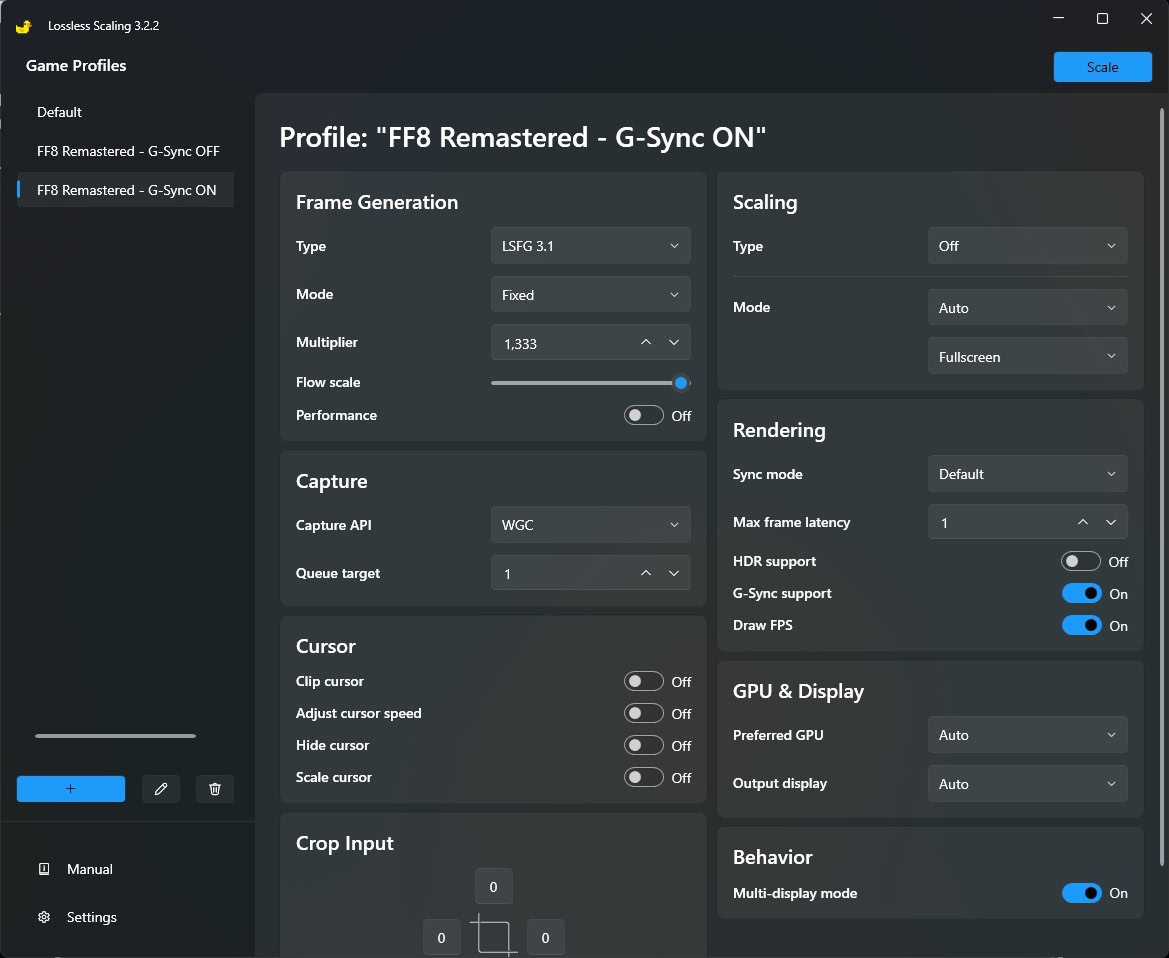
Overview of the Main Lossless Scaling Controls for FG
One extra tip I recommend is creating a dedicated preset for FF8 in Lossless Scaling. The preset feature in LS is an excellent way to save, test, and switch between different setups, and it is especially useful if you use LS across multiple games.
3 – Launch FFVIII and enable Lossless Scaling Frame Generation
Once everything is configured, launch Final Fantasy VIII Remastered through Eden Launcher with Lossless Scaling already open. Then simply activate Lossless Scaling on the game by switching between windows, clicking the blue “Scale” button in the top-right corner of the LS window, and then selecting the FF8 window before the activation timer expires.
4 – An Important Consideration
When testing Lossless Scaling Frame Generation with Final Fantasy VIII, it is important to keep your expectations realistic. The Multiplier does not magically fix the very low game’s frame rate. It only tells LS AI how aggressively it should generate extra frames based on the frames the game is already producing. This is especially true during the game’s battles and in the FMV cutscenes, which natively run at only 15 FPS. In these cases, let us consider the following multiplier values:
On paper, going from 15 FPS to 30 FPS may sound good, but in practice, 15 FPS is simply a very low base frame rate for a 1:1 generation ratio. At that level, Lossless Scaling AI has too little visual information per second to interpolate cleanly. That means the generated frames are more likely to contain visible artifacts, unstable motion, and less accurate interpolation. This is why doubling the frame rate from 15 FPS to 30 FPS usually does not look as clean as doubling 30 FPS to 60 FPS. In both cases, the multiplier is the same (2x), but the starting point is completely different:
As a result, interpolation tends to work better and look smoother when it starts from a base frame rate that is higher than something as low as 15 FPS, where artifacts and motion inconsistencies are usually much easier to notice. In other words, Frame Generation works better when the base frame rate, though not necessarily high, is already close to an acceptable level. If the original frame rate is too low, pushing the multiplier too far can make the overall experience worse instead of better.
For that reason, the best approach I recommend is to use the feature with moderation in FFVIII. Start with lower values such as 1.333 or 1.667, test the results, and only move to 2.0 or higher if the image quality remains acceptable to you.
5 – Conclusion
To use Lossless Scaling Frame Generation with Final Fantasy VIII Remastered, the most important steps are setting the game to Windowed Mode in Eden Launcher and then set up Frame Generation in Lossless Scaling. Once that is done, Lossless Scaling can apply Frame Generation correctly and improve the overall smoothness of the game.
However, getting good results is not just about enabling Frame Generation, but also about finding a balanced configuration in Lossless Scaling itself. A stable and visually pleasing result depends on using a frame generation level that improves fluidity without pushing the interpolation so far that artifacts become distracting. With the right balance, you can achieve a smoother experience during exploration, battles, and general movement, resulting in a more pleasant overall experience.